Elementor now has an official way to turn an AI-designed HTML page into a real, editable Elementor page: the Elementor MCP, which shipped with Elementor 4.3. We set it up on a clean WordPress site, rebuilt a ten-section landing page with it, and kept notes on everything that tripped us up. This is that write-up — what it is, how to connect it, the workflow that works, and the small things worth knowing before you start.
What the Elementor MCP is
MCP (Model Context Protocol) is a standard way for AI tools to call actions in other software. The Elementor MCP exposes Elementor’s page-building actions to the AI tool you already use — Claude Code, Claude Desktop, Codex, Cursor, or any other MCP client — so the assistant can create pages, add and style elements, manage your global classes and variables, and save the result inside your own site. Nothing is pasted or imported by hand: the AI builds directly in Elementor, and everything it creates is a normal element you can select and edit in the panel afterwards.
It builds with Elementor’s newer atomic elements — Flexbox, Div block and Grid containers, Heading, Paragraph, Button, Image, SVG, Tabs, Accordion and others — styled through global classes and variables rather than per-widget settings. That is the main thing to understand before you start, because it shapes both the requirements and the workflow.

What you need
- WordPress 6.8 or newer and Elementor 4.3 or newer. The free plugin is enough to connect and build; Elementor Pro and the free Angie plugin add more abilities, such as forms, theme templates and custom widgets.
- The Atomic Editor switched on. On sites first installed with Elementor 4 it is usually on already. On older sites that were updated to 4.3 it starts switched off, and the MCP’s building tools stay locked until you turn it on under Elementor → Settings → Atomic Editor.
- An AI tool that speaks MCP. Elementor itself does not charge for the MCP; what you pay is whatever your AI tool charges for the work.
Connecting it takes about a minute
- In WordPress, open Elementor → Elementor MCP and click Enable MCP access.
- Choose your tool: Claude Code, Claude Desktop, Codex, Cursor or Other.
- Tick the box confirming that an application password will be created for the site.
- Click Generate Prompt, copy it, and paste it into your AI tool. It configures the connection; some tools need a restart afterwards.
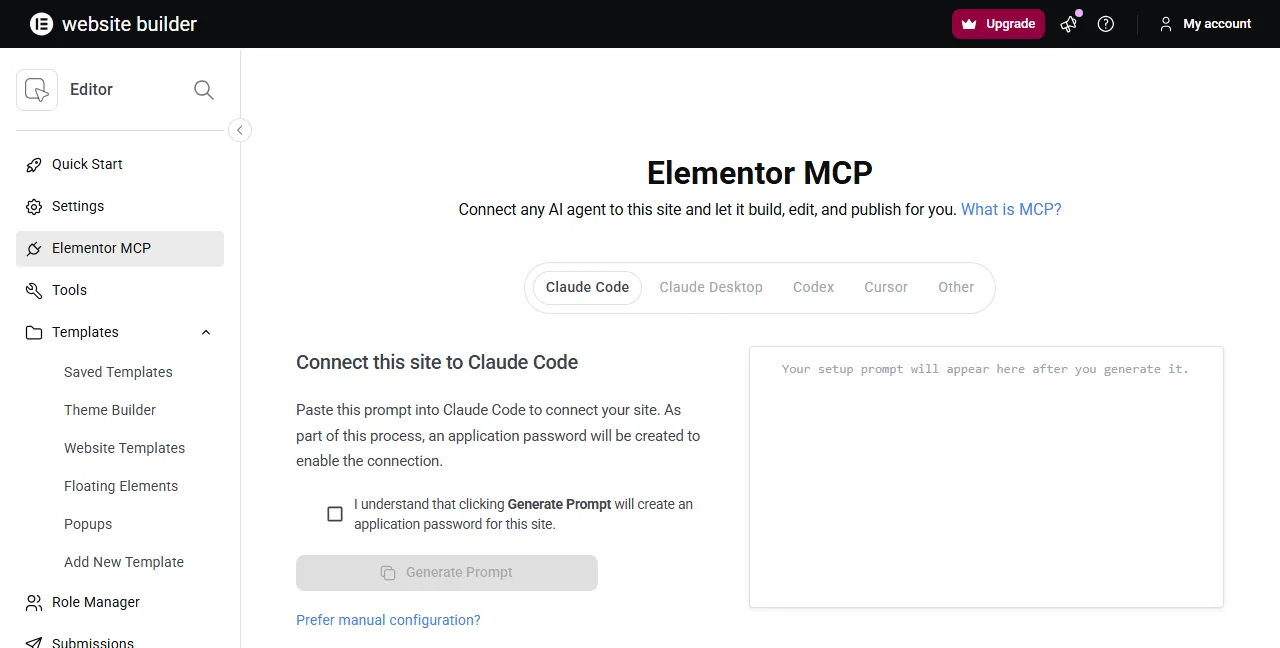
The connection acts with the permissions of the WordPress user who created it, so an editor account can only do what an editor can do. You can revoke a single connection under Users → Profile → Application Passwords, or switch the MCP off for the whole site from the same Elementor screen.
The workflow that works
Elementor’s own walkthrough, and our test, point to the same order of work. The important idea is that each step gives the next one a fixed reference, so the AI is copying decisions rather than inventing them. If you would like to see it done end to end, Elementor’s webinar on this workflow (about 45 minutes, on YouTube) follows a product manager from the editor team building a full page this way.
- Settle the look first. Explore directions with quick images, then have the AI write the page as plain HTML and CSS. HTML is cheap to change; this is where you iterate on layout, copy and colours.
- Upload your images. Put the page’s images in the Media Library before building, so the AI can reference them instead of improvising.
- Create the design system. Ask the AI to read the HTML and create your colours and fonts as global variables and your repeated styles — buttons, section titles, cards — as global classes. Keep it lean: in Elementor’s own demo the first pass produced over a hundred classes, which they trimmed to about sixty general ones.
- Build one section at a time, with a short instruction such as “build the pricing section from the HTML using our classes”. Small steps are easier to check and cheaper to redo.
- Check each section in the editor and at mobile width before moving on. Elementor’s team is clear that the result still needs a person’s final pass — in their demo, one image needed adjusting on mobile and a tabbed hero needed fine-tuning.
Seven things we learned in our test
We used Elementor 4.3.5 on a fresh WordPress install, with no Pro or Angie, and rebuilt a landing page with a hero, logo strip, six feature cards, stats, a testimonial, three pricing plans, an FAQ, a call-to-action band and a footer. The result was very close to the original. These are the details that cost us time:

- Uploading SVG icons needs one setting. The SVG element only shows icons that are in the Media Library, and WordPress rejects SVG uploads by default. Turn on Elementor’s Enable Unfiltered File Uploads setting and upload the icons through the Elementor media picker.
- Outline icons can come out filled. The SVG element sets the icon’s fill to the current text colour, so stroke-only icons — the style most AI-generated pages use — render as solid shapes. Giving the SVG element a transparent text colour brought the outlines back.
- Class order is priority. When two global classes set the same property, the one higher in the list wins. Classes are listed in the order they were created, so a small-button class made after the base button class would lose its smaller padding. We had the AI move the modifier classes above the base ones before building.
- Watch for silently dropped styles. Most unsupported CSS is reported as a warning in the tool’s response — per-side border colours, a sized radial gradient, a separate row gap. A few things were dropped without a warning: a highlighted word inside a heading lost its colour, and a nested rule styling a span inside a price did not apply. Looking at the page, not just the response, is what catches these.
- Text elements have fixed tags. The Paragraph element accepts only
porspan, so a quote marked up as<blockquote>becomes a paragraph. - Plan for the accordion’s indicator. In our test the FAQ’s open and closed indicator did not appear, whether we left the icon slot empty or left it out entirely. According to the tool’s own instructions the slot holds an SVG element, so give it an uploaded icon or add the indicator in the editor afterwards.
- Use the preview link to self-check. The MCP can create a temporary preview URL of the current draft. Asking the AI to look at it after each section is the cheapest way to catch problems early.

For a sense of scale, the whole page took about thirty tool calls — two of them failed on our own mistakes (a duplicated element name and a tag the Paragraph element does not accept) and had to be resent — and roughly a quarter of an hour of the assistant working on a slow local test server. Every new session also starts by reading the list of tools the MCP offers, which is a sizeable amount of text, so short, well-scoped sessions are more economical than one long one.
When a simpler route fits better
The MCP is the most capable option when you already work with an AI coding tool and want a page built on a proper design system. If you only need a single block pasted into an existing page, do not use an AI tool, or need the result on a site that still runs the classic editor, a converter that outputs classic widgets is the simpler path — that is what the converter on this site does, locally in your browser. The two also combine well: the finished HTML from your AI tool is the same input either way.
In short
Design in HTML, upload your assets, set up a small design system, then let the MCP build section by section while you check each one. The Elementor MCP turns a good HTML design into native, editable Elementor structure, and the time you spend on preparation is what makes the result clean.
This guide is independent and not affiliated with Elementor. It reflects Elementor 4.3.5, tested in October 2026; details may change in later versions.